Choose the scene for AI food photos: vacuum bag, jar, buffet and more
Generate AI food images from your spec sheet and pick the scene: vacuum bag, gastronorm, buffet or jar. True to the recipe, inside Miselup.
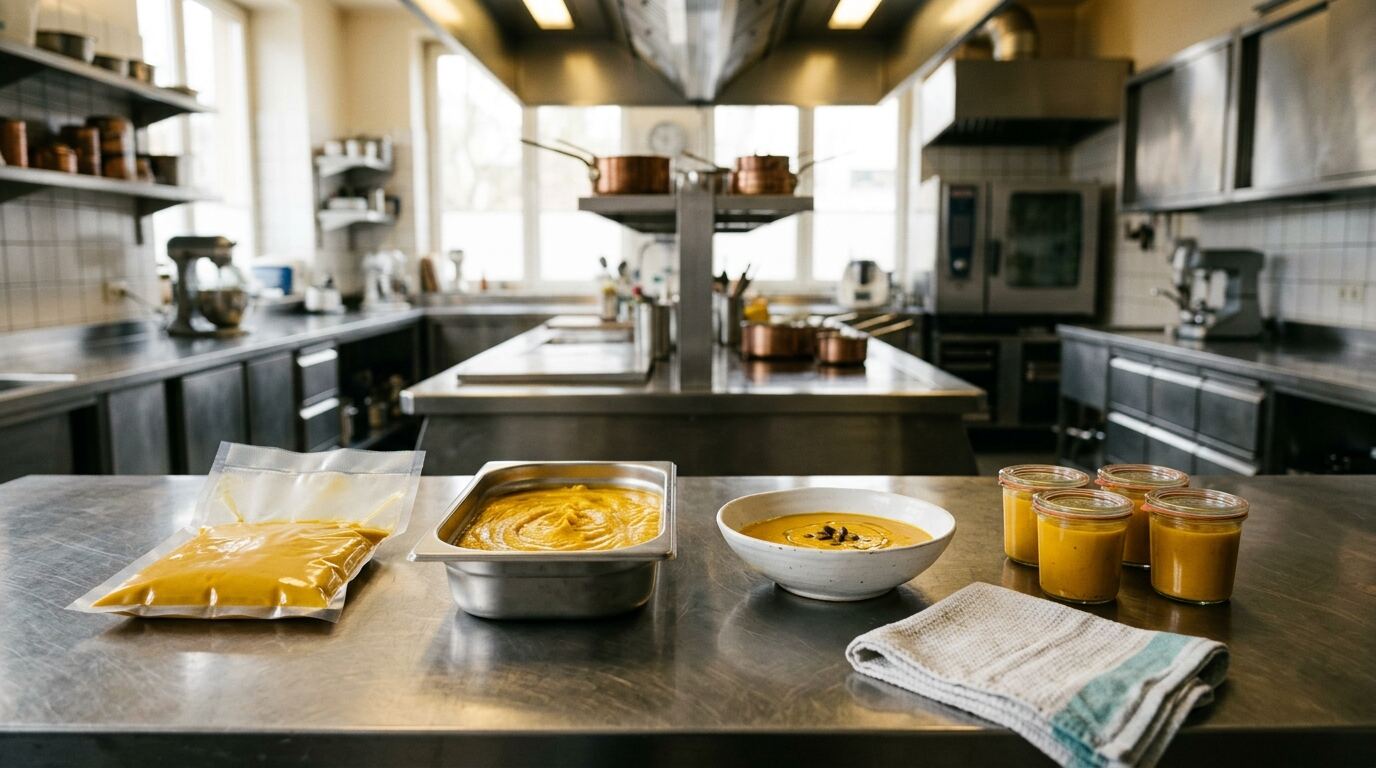
A catering kitchen does not sell its pumpkin cream on a white restaurant plate. It vacuum-packs it, moves it in gastronorm pans or serves it in jars on an event tray. Until now, AI images in Miselup stayed true to the spec sheet, but with a fixed staging for each type of record. Fine for a menu, less useful if you work with production, packaging or events.
That is why we added the direction: an optional step to choose how you want to see the item. In Miselup the image starts from your own spec sheet, and now you pick the scene. It all happens in the tool where you already have your costing, with nothing to export, upload or open in another app.
AI Chef Pro · AI for chefs55+ AI tools for your kitchen55+ AI tools to create recipes and menus and optimize your costs.Take a look →What the direction is and where to find it
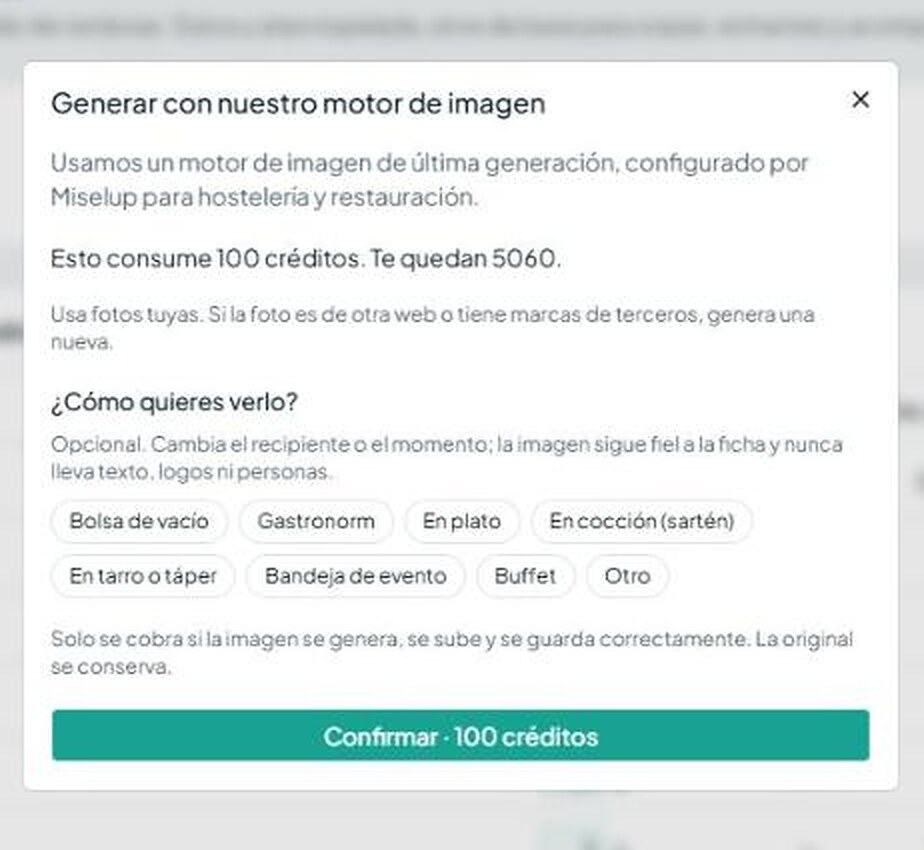
On the record of an ingredient, an intermediate preparation or a final preparation (drinks included), the “Generate with AI” button opens the dialog “Generate with our image engine”. The app explains it like this: “We use a state-of-the-art image engine, configured by Miselup for hospitality and foodservice.”
Inside the dialog there is a new block, “How do you want to see it?”, with one-tap chips. The in-app help sums up the idea: “Optional. It changes the container or the moment; the image stays faithful to the record and never includes text, logos or people.” If you pick nothing, the image comes out with the usual staging.
It is also available in Mise Studio, for food photos. The AI images guide walks through every screen.
Examples for each direction
There are eight chips. This table shows what to expect from each one, using generic preparations as examples.
| Direction | What you will see | What it is good for |
|---|---|---|
| Vacuum bag | The preparation vacuum-packed, like a sauce or a stew | Production, storage and central kitchens |
| Gastronorm | The preparation in a gastronorm pan, ready to store or transport | Production sheets and walk-in organization |
| On a plate | The final preparation served on a plate | Menus and describing what you offer |
| While cooking (pan) | The preparation in a pan, mid-process | Process content and team training |
| In a jar or food container | The preparation in a glass jar or a takeaway container | Takeaway, desserts and preserves |
| Event tray | The preparation arranged on a tray for a service | Catering and event proposals |
| Buffet | The preparation set out as part of a buffet | Buffet quotes and offers |
| Other | Whatever you describe in up to 150 characters | Any scene not covered above |
Three real examples
We ran the test on October 19, 2026 with a Miselup account. Here are the three screenshots.
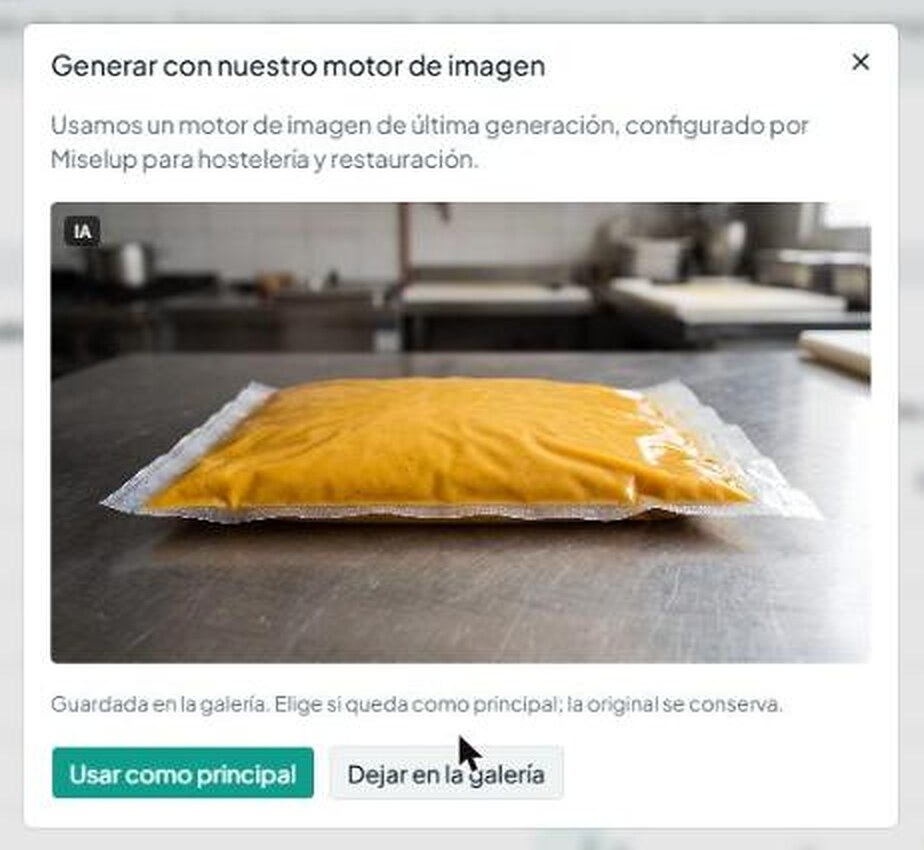
Pumpkin cream with “Vacuum bag”
We picked the “Vacuum bag” chip on the cream’s record. The result shows the cream vacuum-packed on a steel kitchen table. It is the image a central kitchen needs for its production sheet, something a plated photo cannot tell you.
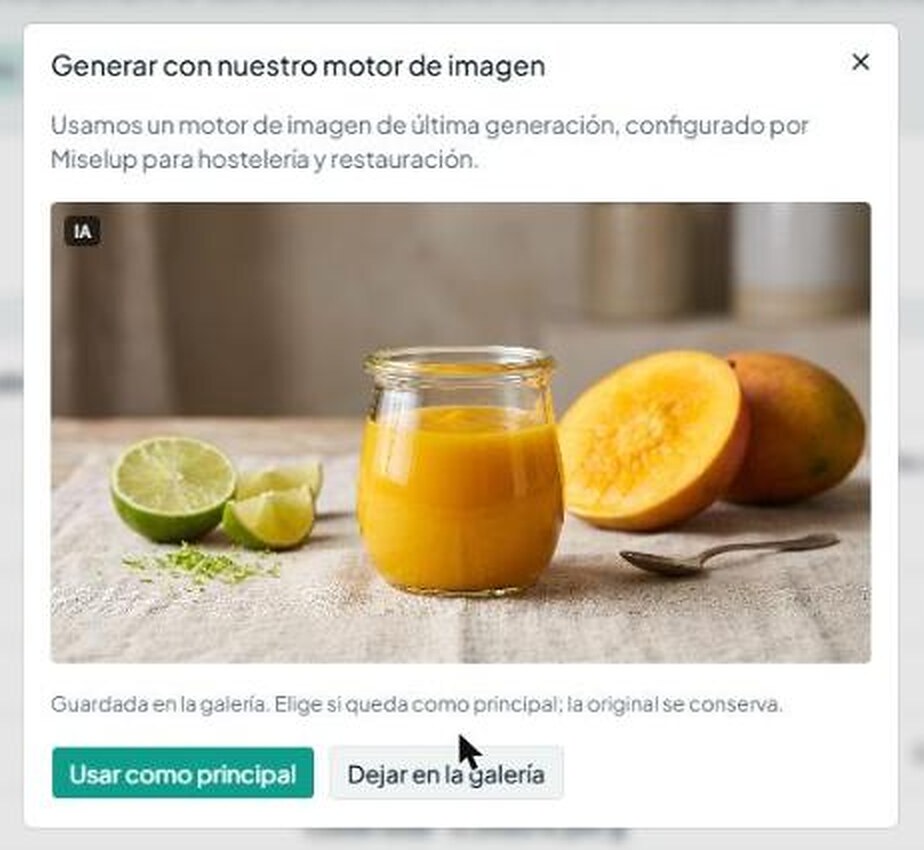
Mango coulis with “In a jar or food container”
For the mango coulis we tried the “In a jar or food container” chip. The image shows the coulis in a glass jar, with mango and lime beside it. It works well for takeaway products or a dessert proposal.
Pumpkin cream with “Other”
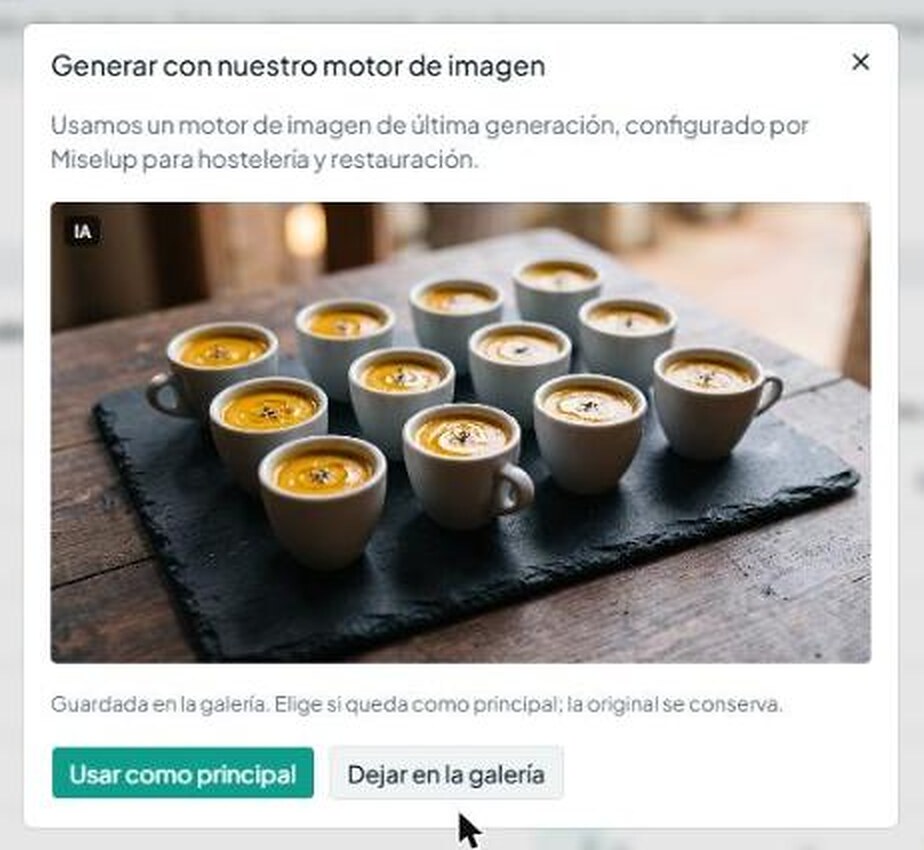
For the third example we chose “Other” and typed «tazas de café en bandeja de pizarra» (“coffee cups on a slate tray”). The cream appears served in coffee cups on a slate tray, a typical event canapé format.
What does not change
The direction is a scene layer, not a change of rules. This stays the same:
- True to the record. The image adds or removes no ingredients. It never includes text, labels, logos, watermarks, hands or people.
- Cost. 100 credits per image, the same as always. You are only charged if the image is generated, uploaded and saved correctly. The original is kept.
- Gallery. The result is saved in the record’s gallery and you choose “Use as main image” or “Keep in gallery”. Generated images carry an “AI” mark.
- Enhance with AI. It has no direction, because it keeps your real photo.
- Batch fill. Filling records that have no image still exists and uses the usual staging, with no direction.
- Miselup Library recipes. They share their photo across all accounts. To generate an image of your own, first add the recipe to your records with “Review incorporation”.
Monthly credits are shared with Mise Agent and Mise Studio depending on your plan: 750 on Mise Essential, 2,500 on Mise Pro and 5,000 on Mise Pro HACCP. Prices are per location, excluding VAT: €19, €49 and €79 per month. There is no free plan or free trial: creating the account is free, but using Miselup requires a plan.
Who it helps
- Catering and events: event tray, buffet and jars to present proposals.
- Central kitchens and production: gastronorm and vacuum bag for kitchen spec sheets that are never plated.
- Vacuum packing and takeaway: jar or container for the product that leaves your kitchen.
- Menus: “On a plate” when you do not have a photo of your own yet.
- Process content: “While cooking (pan)” to show a preparation in progress.
If your need is the menu, the general approach is in AI food photography for menus and records and, if you prefer to shoot it yourself, in how to photograph your dishes for the menu.
How to use it in four steps
- Open the record of the ingredient, the intermediate preparation or the final preparation.
- Press “Generate with AI” to open the “Generate with our image engine” dialog.
- Under “How do you want to see it?”, pick a chip or write your own note in “Other”.
- Review the image and decide: “Use as main image” or “Keep in gallery”.
Always review the result before using it. It is a generated image to illustrate the record or your communication when you have no photo of your own. It does not replace the real photo of the product you serve when you sell, and it cannot be used to check allergens.
We keep shipping improvements like this one; you can follow them in the roadmap updates.
ChefBusiness · Real profitabilityMaximize your restaurant without losing moneyCost control and food marketing. Book your ChefBusiness consulting now.Get the consulting →Frequently asked questions
How much does it cost to generate an image with a direction?
It costs 100 credits per image, the same as an image without a direction. You are only charged if the image is generated, uploaded and saved correctly, and the original is kept. Monthly credits are shared with Mise Agent and Mise Studio: 750 on Mise Essential, 2,500 on Mise Pro and 5,000 on Mise Pro HACCP.
Does the direction change the ingredients in my recipe?
No. The direction only changes the scene: the container, the moment and the setup. The image stays true to the spec sheet, adds or removes no ingredients and never includes text, labels, logos, watermarks, hands or people.
Can I write anything I want in “Other”?
You can write a free-text note of up to 150 characters, with a counter. Use it to describe a container or a moment, such as “coffee cups on a slate tray”. Even with free text, the same rules apply: true to the spec sheet, with no text, logos or people.
Can I use it to illustrate my menu?
Yes. With the “On a plate” option you can illustrate a final preparation when you have no photo of your own. It is a generated image that illustrates the record or your communication, not a real photo of what you serve. If you sell that product, use the real photo and always review the result.
Does it work in “Enhance with AI” too?
No. “Enhance with AI” works on a photo of your own and keeps your real photo, so it has no direction. The direction is available when you generate images from the record and in Mise Studio, for food photos.
Is it legal to use AI images on a menu?
We do not give legal advice, so check your own case with a professional. As a cautious rule, treat the image as illustrative and make sure it does not mislead people about the product you actually serve. If the image does not look like what reaches the customer, use your real photo instead.
Start choosing the scene
Create your account at app.miselup.pro/signup (it is free) and check the plans to see which fits your kitchen. If you work with photos, take a look at Mise Studio too.