Giving your team access with a URL and a PIN
Your kitchen opens the recipe book on their phone with a link and a 4-digit PIN — no email, no password, and no costs.
Updated on October 6, 2026
What is team access by URL and PIN?
It’s the door Miselup opens for your kitchen and front-of-house staff: a Team access URL plus a personal 4-digit PIN. Nobody needs their own email or password, and it doesn’t use up a management seat. You set it up in Account → Team.
To edit recipes or manage the business with email and password, see Management users: roles and areas.
What does my team see, and what don’t they see?
They get a read-only recipe book with no prices or costs. What they do see on each sheet: the quantities (scalable to the day’s servings), the steps, the techniques, the smallwares, the allergens, the videos and the attached documents and links. The portal has three sections: Recipes, Library (techniques and ingredients) and HACCP, where they can log the checks they’re responsible for according to the subscription. With Mise Pro HACCP, they also see open receiving and lot-storage obligations for authorised controls and link them when recording. Only the final act covers the obligation; starting a two-act process leaves it in progress. Transport (loading → unloading) and retention samples (origin → destination) can be completed in the portal. Each recipe sheet can be downloaded as a PDF straight from the phone.
How do I add someone to the team?
- Go to Account → Team.
- In the team members block press «Add».
- Type the person’s Name.
- Pick their Area: Kitchen, Pastry, Bakery, Bar / Cocktails, Barista, Buffet / Banquets, Front of house or Other.
- Assign their PIN (4 digits), either by hand or with the random PIN button. It can’t be a duplicate: if someone else on the team already uses it, Miselup tells you.
- Optionally, tick under «Visible recipe book (category delegation)» which categories they’ll be able to see. With no selection, they see the whole published recipe book.
- Press «Create worker».
How do I share the access with the kitchen?
In the «Team access URL» section you have three buttons: «Copy», «Share» and «Show QR». The URL is the same for the whole business; what’s personal is the PIN.
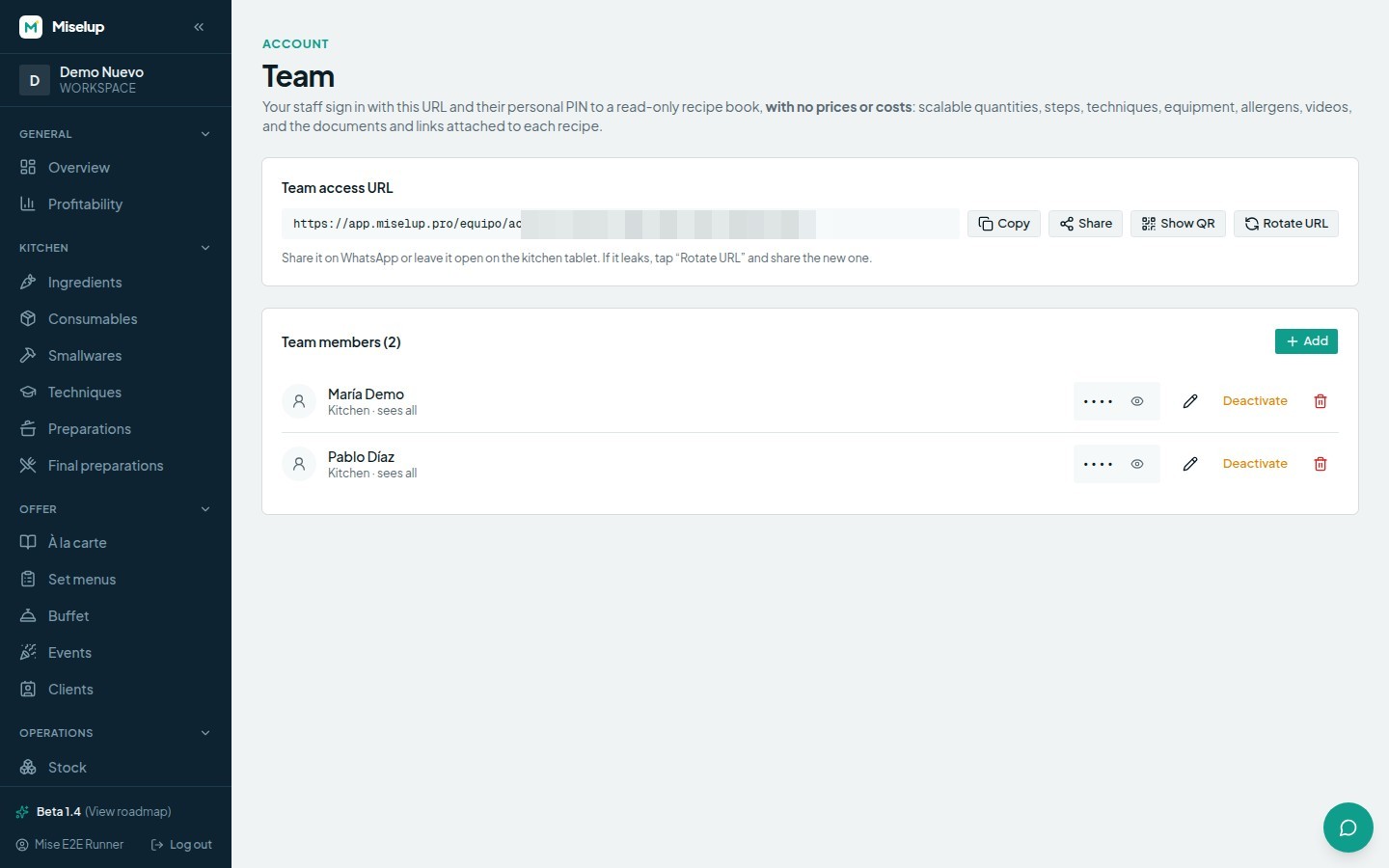
- Send it over WhatsApp along with each person’s PIN.
- Leave it open on the kitchen tablet.
- Print the QR and stick it up in the kitchen, or leave it on the tablet so they get in by scanning it with their phone.
How do I change a PIN or rotate the team URL?
- To change a PIN, open the worker’s card in Account → Team, type the new PIN (4 digits) —or generate a random one— and press «Save changes». Let that person know: the old one stops working for them.
- To rotate the URL, press «Rotate URL». Do it if the link has leaked. Bear two things in mind: rotating only invalidates the link for new logins —anyone already in and still active isn’t kicked out— and PINs don’t change. Afterwards you’ll have to hand out the new link.
How do I cut off access for someone who’s leaving?
Rotating the URL isn’t the tool for this, because it affects the whole team. To cut off one specific person, from their card in Account → Team:
- «Deactivate» — they lose access to the recipe book on their next action, their data is kept, and you can «Reactivate» them whenever you want. They get flagged as «Inactive».
- «Delete» — permanently removes them only if no HACCP records depend on them as author or subject. If there are any, Miselup blocks deletion: use «Deactivate» to cut off access and preserve the history. A permitted deletion cannot be undone.
Known limits
- Only the owner or an administrator can manage the team. Every other role doesn’t see these options.
- The sheet has to be ticked as «Visible to the team». If your kitchen opens the portal and cannot see a recipe, check that switch on the sheet you want to share. Recipe visibility is independent of the HACCP controls available under your plan.
- The PIN is exactly 4 digits and is unique per person within your business.
- PIN attempts are capped, including per organisation. A block can affect the whole kitchen even with a correct PIN. The portal shows the remaining minutes; rotating the URL does not lift that block.
Was this article helpful?
Thanks! This helps us improve the help center.
Related articles
-
Management users: roles, areas and invitations
Give a chef or manager editable access with their own email and password. Understand Users versus Team by PIN, choose roles and areas and manage invitations.
-
Creating your account and registering your business
Sign up with email or Google, verify your inbox, and get your business name, concept and country in place.
-
The spec sheet: photo, steps, smallwares and techniques
Turn the costing into the sheet your kitchen actually uses: main image, videos, method, plating, smallwares and techniques.
-
Scaling servings and sale formats
Change the servings and the whole costing recalculates proportionally on screen, without touching the saved recipe.
Can't find what you're looking for?
Write to us and a real person from the team replies — no bots in the way when you need to talk.
Contact the team