Creating your account and registering your business
Sign up with email or Google, verify your inbox, and get your business name, concept and country in place.
Updated on September 27, 2026
How do I create my Miselup account?
There are two routes, and both end up in the same dashboard:
- With your email and a password — you fill in the sign-up form and verify your inbox with a code.
- With «Continue with Google» — you sign in with your Google account and Miselup only asks for your business details afterwards.
Creating the account is free and no card is asked for. The plan comes after: the first time you open the dashboard, Miselup shows you the plans screen —Mise Essential, Mise Pro and Mise Pro HACCP— so you can pick one and pay by card through Stripe. As soon as the payment goes through, the whole dashboard is yours. It is all spelled out in Miselup’s plans.
What details do I need to sign up with email?
On the «Create account» form you fill in, in this order:
- Company name — your business’s name.
- What kind of business is it? — your concept, picked from a list of twelve: restaurant, bar / coffee shop, pastry shop / bakery, ice cream shop, dark kitchen or delivery-only, catering & events, institutional catering, hotel / lodging, food truck, food production / industry, consulting / culinary training and «Other».
- Your name — whoever is going to run the account.
- Email — this becomes your login credential.
- Country — where your business is. It’s the field everything else hangs off: picking it sets both phone country codes on its own, and your account’s currency and time zone are configured from it.
- Mobile phone — required. The country code is already in place from the country, so you only type the national number.
- Landline (optional) — same format.
- Password — at least 6 characters.
- How did you hear about us? (optional) — Google or another search engine, YouTube, ChatGPT / Claude or another AI, social media, a recommendation, or «Other». You can leave it unanswered.
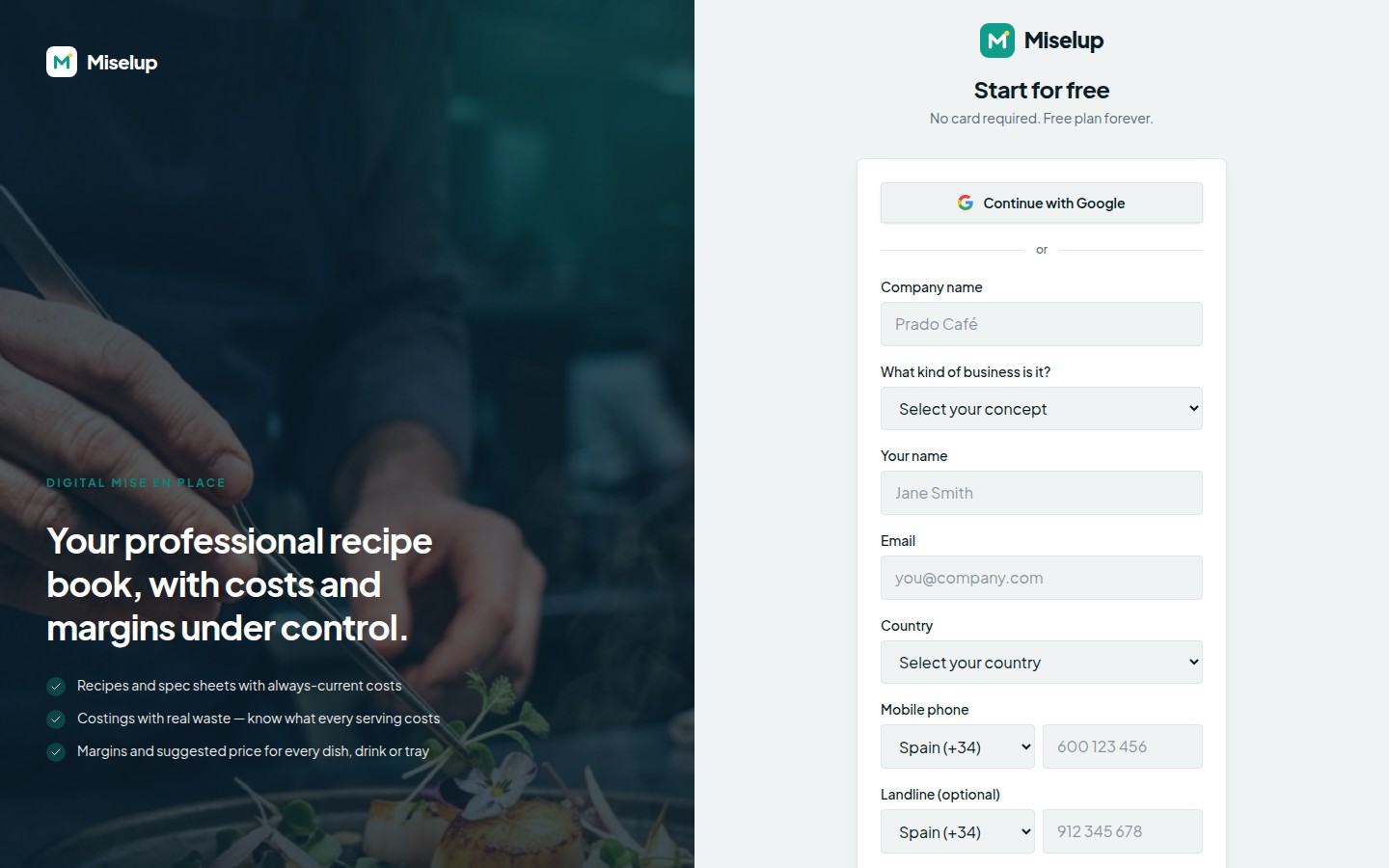
Hit «Create account» and you move on to email verification.
How do I verify my email?
Miselup sends a 6-digit code to the address you signed up with. You type it on the «Verify your email» screen and press «Verify and continue»: the account goes live and you move on to the plans screen to pick yours. If the email doesn’t show up, check your spam folder and use the «Resend code» link on that same screen.
What happens if I sign in with Google?
The first time you sign in with Google, Miselup already knows who you are but still knows nothing about your business, so it takes you to a welcome screen with the same questions as the email sign-up, minus the ones it already knows: Company name, What kind of business is it?, Country, Mobile phone, the Landline if you want, and How did you hear about us?. Press «Go to dashboard» and your organisation is created — next stop is picking a plan. With Google there’s no verification code: your address arrives already verified.
Why does sign-up ask for my country?
Because three things hang off it that are a pain to fix later: your phone country codes, the currency you cost in, and the time zone that dates every entry in your HACCP records book. Pick it and all three fall into place; if your currency isn’t one Miselup handles yet, the account stays in euros and you change it in Account → Company.
It also works the other way round: if you type your mobile with its «+» and haven’t picked a country yet, Miselup suggests one. It never overwrites a country you already chose — an owner with a Spanish mobile opening a place in Lisbon is the most normal thing in the world.
Where do I change my business details afterwards?
Everything you declared at sign-up is edited in Account → Company, in the «Company details» section:
- Trade name — the brand shown on à la carte menus, set menus and public links. Leave it blank and the legal name is used instead.
- Legal name / Company name — the fiscal name of the entity being billed. It’s required.
- Type (company or sole trader), Tax ID / VAT number and Billing email.
- What kind of business is it? — the concept you picked at sign-up.
- Type of business — your food safety profile (Production workshop, Vulnerable populations, Industry registered in RGSEAA…). Sign-up no longer asks for it: Miselup derives it from your concept when the match is unambiguous and leaves it undeclared when it isn’t. Here you confirm or correct it, and the HACCP module asks you again when you activate your HACCP plan.
- Billing address, with its Country (a dropdown, not free text), and the Working currency.
Your personal details —your name and the interface language— live in Account → My profile.
Known limits
- Your login email can’t be changed from the app. It’s your credential: to change it you have to write to support.
- Passwords are changed with a code. In Account → My profile → Password you press «Change password» and Miselup emails you a code to complete the change.
- Only the owner or an administrator can edit the Company details. Every other role sees them read-only.
Was this article helpful?
Thanks! This helps us improve the help center.
Related articles
-
What Miselup is and what it includes
Integrated business management: costings and margins, with inventory, purchasing, production, HACCP and daily P&L by plan. Also events and AI.
-
Your first recipe costing in 10 minutes
The short route: add two or three ingredients, build a final preparation, and see its cost, its food cost and its selling price.
-
Changing the language, the currency and the country
Where to switch the interface language, the currency your costs run in and your business's country, and what each one affects.
Can't find what you're looking for?
Write to us and a real person from the team replies — no bots in the way when you need to talk.
Contact the team