Logging cold room and freezer temperatures
Type in the temperature, a badge tells you whether it's in range, and the reading is saved with its time and its author. From the team's phones too.
Updated on October 6, 2026
Where do I log a cold room’s temperature?
In the sidebar, under «HACCP» → «Temperatures»: the «Temperature control» screen. Every piece of equipment you’ve added shows up on its own card, with its range and its latest reading.
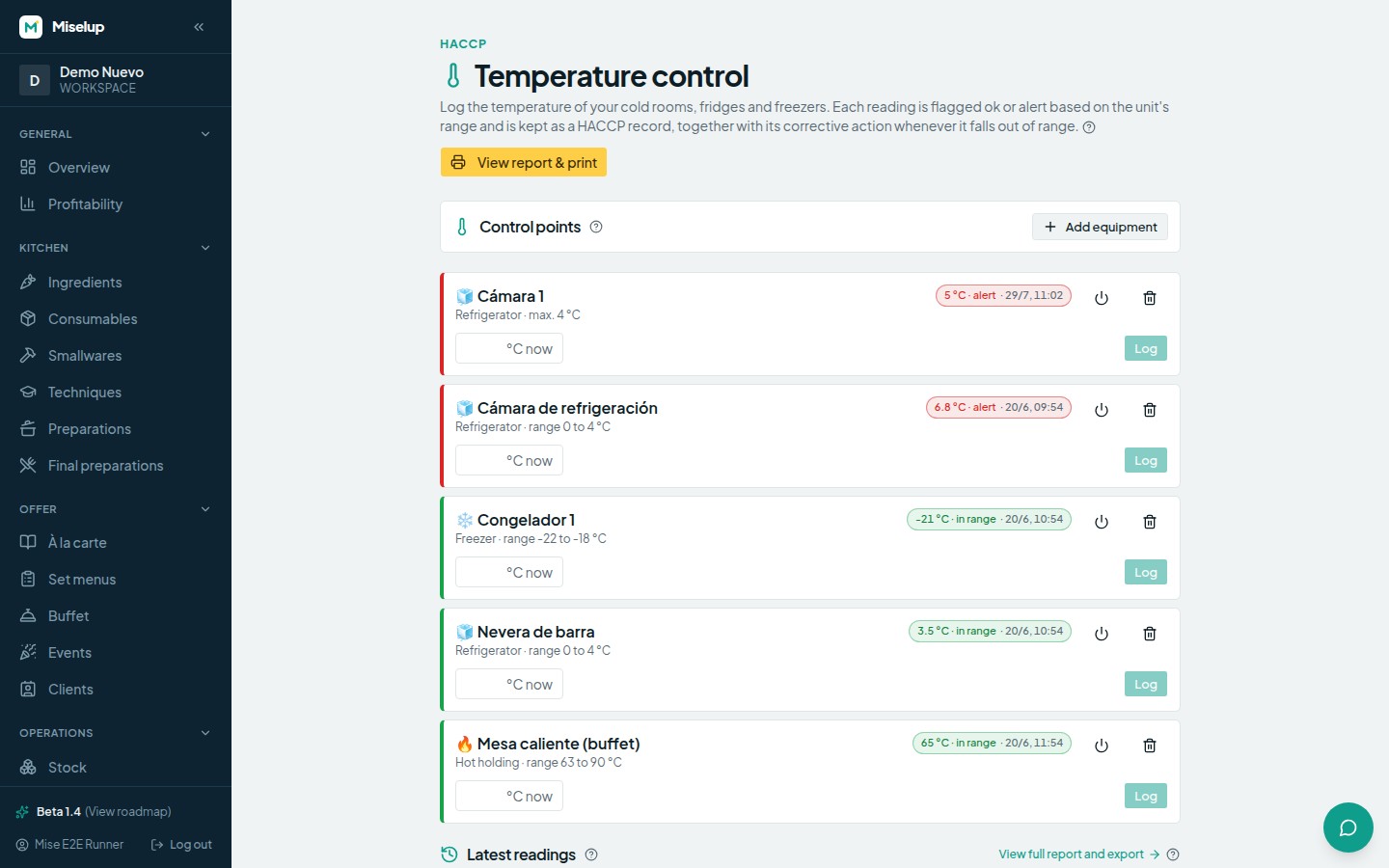
To log a HACCP temperature:
- Find the card for that unit (cold room, fridge, freezer, hot holding cabinet…).
- Type the temperature into the «°C now» field.
- Watch the badge that appears beside it as you type: «in range», «out of range» or «no criterion».
- Press «Log».
The reading is saved with the time and the author the system stamps on it, and with the verdict frozen against the range that unit had at that moment. It isn’t recalculated afterwards, not even if you change the range.
With the HACCP suite and exactly one active control point for that unit, this screen records in the book, against that point’s criterion, and covers the applicable window. Earlier readings stay in the history; they are not rewritten. Without that active point, temperature logging keeps its own path.
What do I do if the temperature comes out of range?
When what you type is flagged «out of range», the app opens the «Corrective action (e.g. check the motor, move the goods…)» field underneath, up to 300 characters. Write down what was done with the goods and with the process and then press «Log»: that is exactly what an inspector looks for after every alert.
That reading also triggers an email alert. How those alerts work is covered in /en/help/haccp-alerts-and-gaps/.
What does each reading status mean?
- «in range» — the reading falls inside the unit’s range.
- «alert» — it falls outside the range: it counts as an incident on the report.
- «no criterion» — the unit has no declared range, so the reading is stored but proves no conformity. Give that unit a range.
- «voided» — the reading was corrected by voiding it; it stays in the book, struck through.
- «awaiting a new reading» — the last one was voided and nobody has measured again.
Can my team log temperatures from their phones?
Yes, from the team portal: each cook signs in with the kitchen link and their 4-digit PIN, and in the «HACCP» section they see «Due today» with the control points from your plan.
- The cook opens the team link and types their PIN.
- They go into «HACCP».
- They find the card for the control point (for example, «Cold room temperature») and press «Record».
- They fill in the form fields and save.
Each card also shows them the checks that are already past their due time, the time each one was due, and how many records that point has today. How to hand out the link and the PINs is covered in /en/help/team-access-url-and-pin/.
How do I see the temperature history and print it?
Below the equipment, the «Temperature control» screen shows «Latest readings». For the full history press «View full report and export»: that takes you to the «Temperature report», where you filter by equipment, by status («In range» / «Alerts») and by dates with «From» and «To», and «Export CSV» downloads temperature-log readings, if any; it does not export the typed record book. «Print / PDF» also includes the manual and the period’s book.
Known limits
- Miselup does not read probes or sensors: the temperature is typed in. There’s no continuous monitoring, and no alerts by SMS, WhatsApp or push notification.
- A unit with no range proves nothing: its readings come out as «no criterion». The fix is to give the unit a minimum and a maximum.
- The team portal writes into the record book. The temperature dashboard also does so when there is exactly one active point and suite access; the earlier history keeps its own listing in the report.
- The report shows the most recent readings, not the entire history when it’s very long; the document itself prints that warning. The workaround is to narrow the period with «From» and «To».
Was this article helpful?
Thanks! This helps us improve the help center.
Related articles
-
Adding equipment and control points
Add your cold rooms and freezers with their range, activate your food safety plan and set each point's criterion so the records actually prove something.
-
The record book: reading it, printing it and correcting it
Everything logged in a period, with its verdict and its author. Filter by date, print it for the inspector, and correct it by voiding — never deleting.
-
Email alerts: deviations and records that never happened
Understand HACCP email alerts, missing checks, recipients and the history of sends, retries and blocked communications.
-
Giving your team access with a URL and a PIN
Your kitchen opens the recipe book on their phone with a link and a 4-digit PIN — no email, no password, and no costs.
Can't find what you're looking for?
Write to us and a real person from the team replies — no bots in the way when you need to talk.
Contact the team